
#Quickstart
Here is a quick summary of steps to help you integrate with Setu’s AA. Before you start, there are some key terms that will be referred to periodically in the documentation—
- AA or Account Aggregator—An entity licensed to show financial data requests to a customer and manage consent approvals/rejections. Setu partners with licensed AAs and offers pre-built, themeable screens to present data requests to your customers.
- FIU or Financial Information User—The entity requesting for data from its customers, i.e., you.
- FIP or Financial Information Provider—The entity that you request the financial data from, like a bank or an insurance provider. On staging, you can fetch data from Setu FIP.
- FI types / data sources—The types of financial data you can request for, from your customers. You can specify this on the Bridge.
- Consent object/request—This is core of the AA framework, wherein you (the FIU) request for consent from your customer to use one or more FI types. As part of the consent object, you would need to provide details like the reason for data request, how many times the data would be fetched etc. You can read more on the details that are sent as part of consent request here.
Use our open source sample app to follow along with the steps below.
#Step 2 — Download the Postman collection
Click on Run in Postman button on the top right corner of the API reference to import the Setu FIU’s API collection. Set the Postman collection environment to Setu Environment.
Update environment variables
To edit environment variables in Postman, click on the eye icon to the top right and then Edit.
Head to The Bridge, and open you FIU app configuration. Update the following variables in the Setu environment on Postman
- Use the client_api_key value shown in the FIU app credentials as
client_api_keyin Postman. - Copy-paste the request signing private key in PEM format to
signing_private_key(this is the key you would have saved while generating your request signing key pair). - Set
phone_numberto the user's mobile number that will be used for testing.
Hit Save after all the changes are complete.
#Step 3 — Implement the API flow
Look at the API integration guide to start testing and implementing AA APIs. The APIs can be broken down into 3 broad flows—
- Consent flow—To create and share data consent requests with your customer, along with handling of approvals/rejections.
- Data fetch flow—To request for and fetch the data, if your customer approved the consent request.
- Notifications flow—To receive notifications from Setu for key events like approval/rejection of consent or be notified when FI data is ready to be fetched.
The following flowchart gives a quick snapshot of how the overall API flow works. The steps marked in blue are the API calls you need to make—
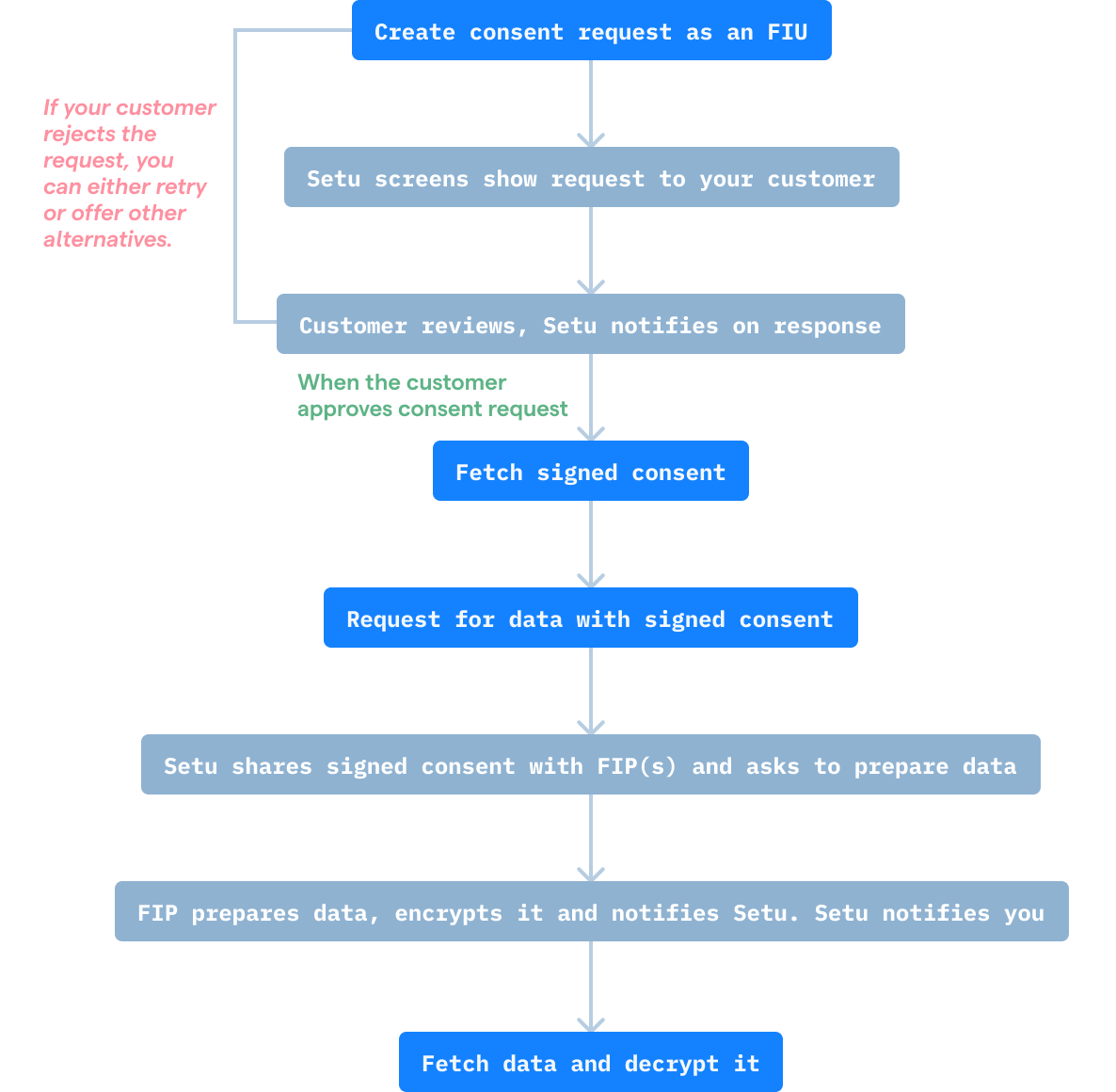
Additionally, there are two test environments for you to comprehensively test the AA flow—
Sandbox
This is a mock environment provided by Setu, and mimics all scenarios you would encounter in the live environment but instead with mock data. This way, you can get a predictable integration experience for when you eventually go live.
UAT
This it the sandbox environment made available by Sahamati, the governing body that oversees all AAs. UAT credentials are issued only after registering with Sahamati and evaluating your FIU application. You can integrate with this, once integration on Setu sandbox is complete.Was this page helpful?