


Bridge configuration
Configuring products
Setu offers products spanning across different categories, including Payments, Lending, Identity and Deposits.
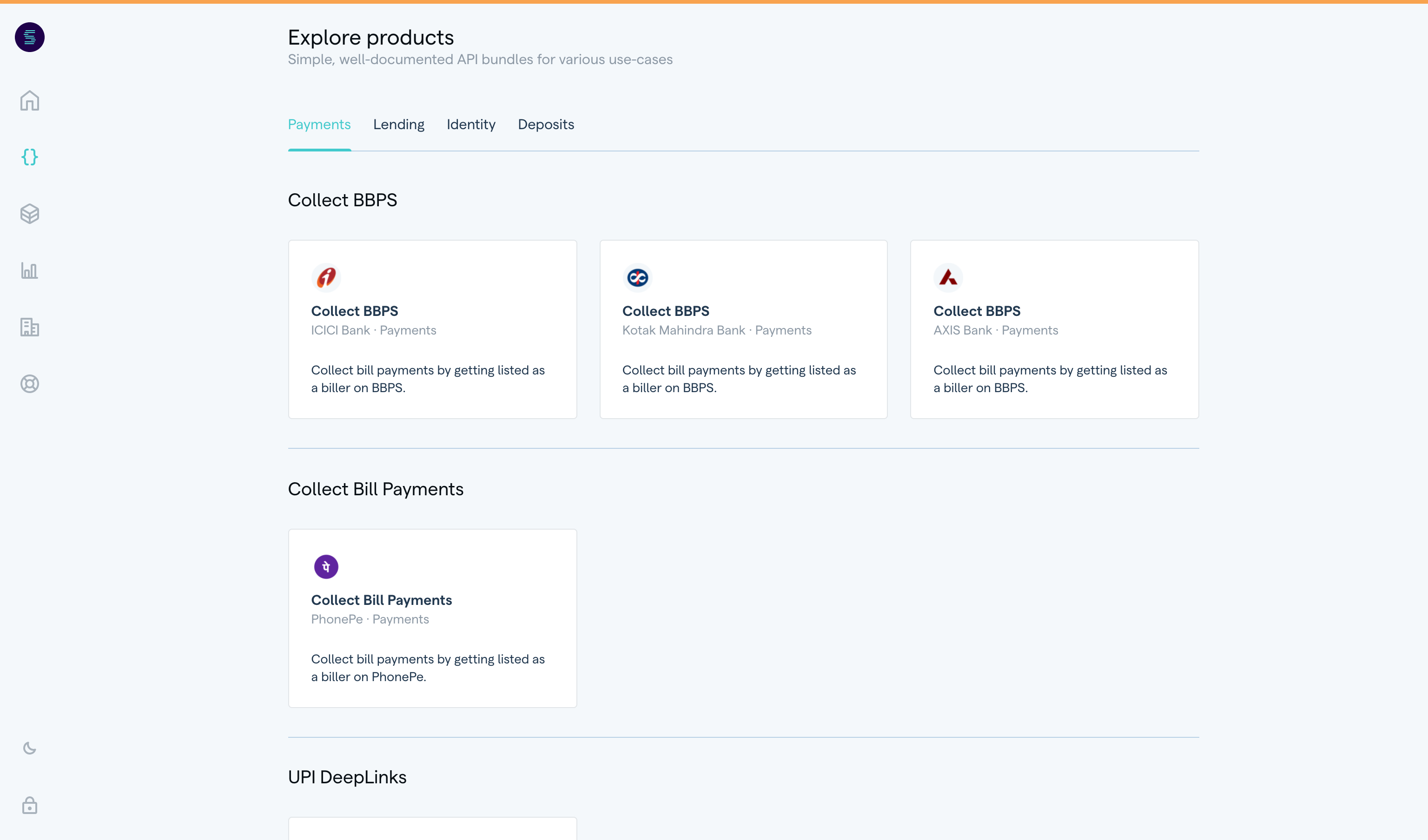
The Bridge is Setu's self serve console to allow partners to configure and go live with any supported product. Presently, we support products focussing on bill collections, under the Payments category—
- Collect BBPS
- Collect UPI DeepLinks
- Collect Bill Payments
Create configurations and go live
Click on “Available products” on the left side navigation bar and look through active products supported on The Bridge.
On clicking a specific product card, you can get know more about what the product has to offer. Access the documentation for configuring the product and get an estimate on the timeline for integration or go live. If you want to try the product, simply click on the “Create” button.
The following example shows the Collect BBPS product for which the supported configuration is called a “biller”, and so the button reads “Create biller”—
Here, just fill in a few quick details—
Name of configuration
The name you’d like to use to identify this configuration internally at your company.
Category
Specify the business category you belong to. Heads up, this cannot be changed later on, because your KYC is determined by this category.
On Sandbox and Production environments
Using The Bridge, you can create a test configurations and also go live once a configuration has been reviewed by a Setu Admin. For this, Setu supports two environments.
Sandbox
This environment is for testing your configuration. Use the product’s “Quickstart” and “API reference” from Setu Docs to aid this process.
Configs on Sandbox require no review from Setu and you use test API keys to call Setu-hosted APIs. If you use JWT auth, you can click the “⚙” icon inside your config and access assigned keys. If you use OAuth, you may create your own keys or attach a previously created key to this config. Read more here.
Production
Once a config is working, you can go live post a review by Setu. Use the product’s “Go Live” documentation from Setu Docs as a reference.
There are two ways to create a draft config on the Production environment on the Bridge—
- Copy a working config from Sandbox, with pre-filled details.
- Create a fresh config in the Production environment and enter new details.
Once you have a config on Production, you can add details in the “Configuration” tab. Additionally, you have to fill in required KYC details.
After completion, you can navigate to the “Submit for review” tab and get your config reviewed by a Setu Admin. This usually takes 2–4 days. Setu may reach out to edit / collect more details as per the product's requirements.
When approved, the config will be on Setu’s production system and you’ll see a “LIVE” status associated with it. You will also be able to see pre-assigned JWT keys or attach OAuth keys as per your preference.